

In today’s digital landscape, establishing a compelling online presence is crucial for businesses, bloggers, and creatives alike. A reliable platform that continues to dominate the market is WordPress. Offering flexibility, scalability, and extensive customization, WordPress powers over 40% of all websites worldwide in 2026. Whether you’re launching a personal blog or building a corporate portal, this WordPress beginner guide will walk you through every essential step. From initial installation and crafting your very first post to fine-tuning SEO and ensuring site security, you’ll discover practical tips and best practices designed to help you flourish.
Currently, many users are drawn to WordPress because of its intuitive interface and vast ecosystem of themes and plugins. This article will outline a clear path: we’ll begin with setting up your environment, move into writing and customizing content, explore optimization techniques, and conclude with strategies for growth and maintenance. By the end, you’ll have all the knowledge needed to manage a dynamic, high-performing website. Let’s dive into this comprehensive WordPress beginner guide and transform your digital vision into reality.
Getting Started with WordPress
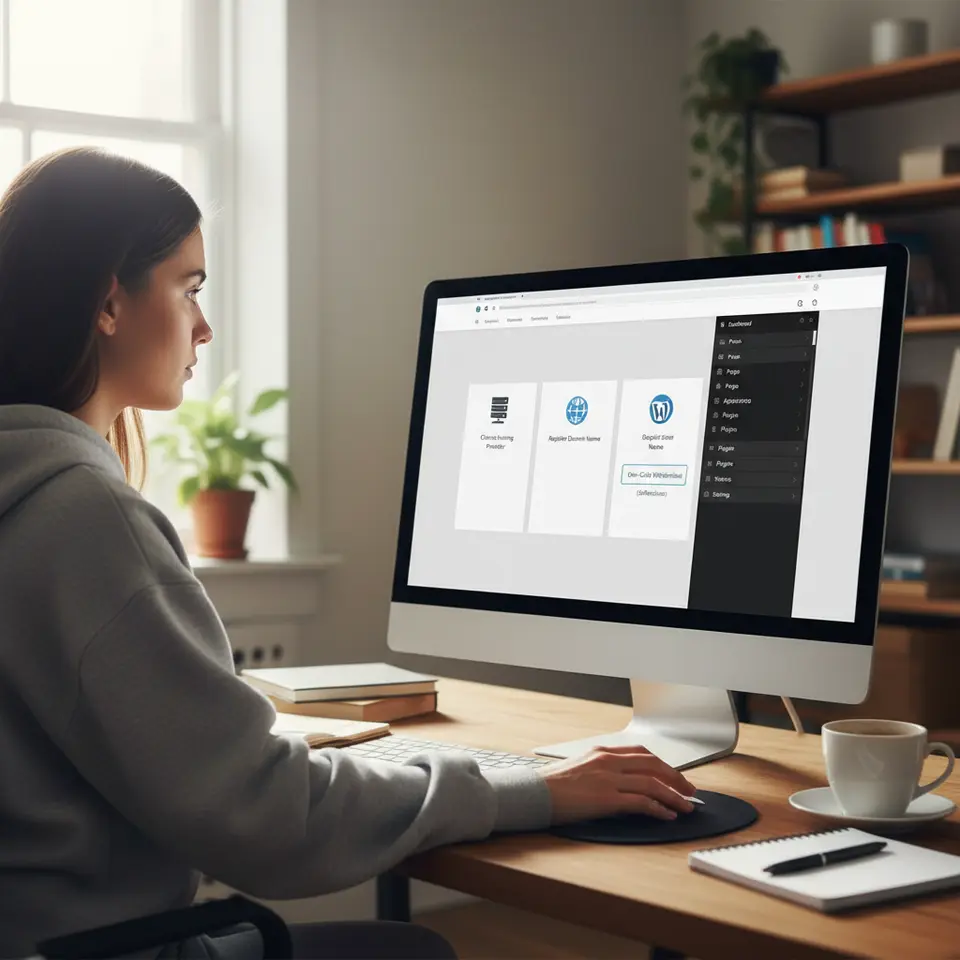
Launching your website starts with selecting the right hosting environment and installing WordPress. As you begin this WordPress beginner guide, consider reputable hosting providers that offer one-click installation features, automatic backups, and excellent uptime guarantees. Many popular hosts provide built-in support for WordPress, making it easy for those new to website management. After choosing your host, register a memorable domain name that aligns with your brand or content niche.
Once hosting and domain registration are complete, log into your hosting control panel. Use the one-click installer, often called Softaculous or Installatron, to set up WordPress. During installation, you’ll choose a site title, admin username, and password—be sure to use strong credentials. You’ll also specify a database name; most installers generate one automatically. When the setup finishes, you’ll receive a login URL such as yoursite.com/wp-admin.
After logging into the WordPress dashboard, take a moment to explore the left-hand menu. Key sections include Posts, Pages, Appearance, Plugins, and Settings. In Settings, confirm your site’s title and tagline, adjust timezone settings, and ensure your permalink structure is set to “Post Name” for SEO-friendly URLs. Spend time familiarizing yourself with the dashboard interface; this lays the foundation for smooth site management.
Next, perform initial security and performance tweaks. Install a security plugin to guard against brute-force attacks and malware. A caching plugin will boost page load speeds, which is critical for user experience and search engine rankings. According to the National Institute of Standards and Technology (https://www.nist.gov), implementing basic security controls and regular updates is essential for safeguarding web properties. With these fundamentals in place, you’re ready to craft your first post and bring your ideas to life.
Crafting Your First Post
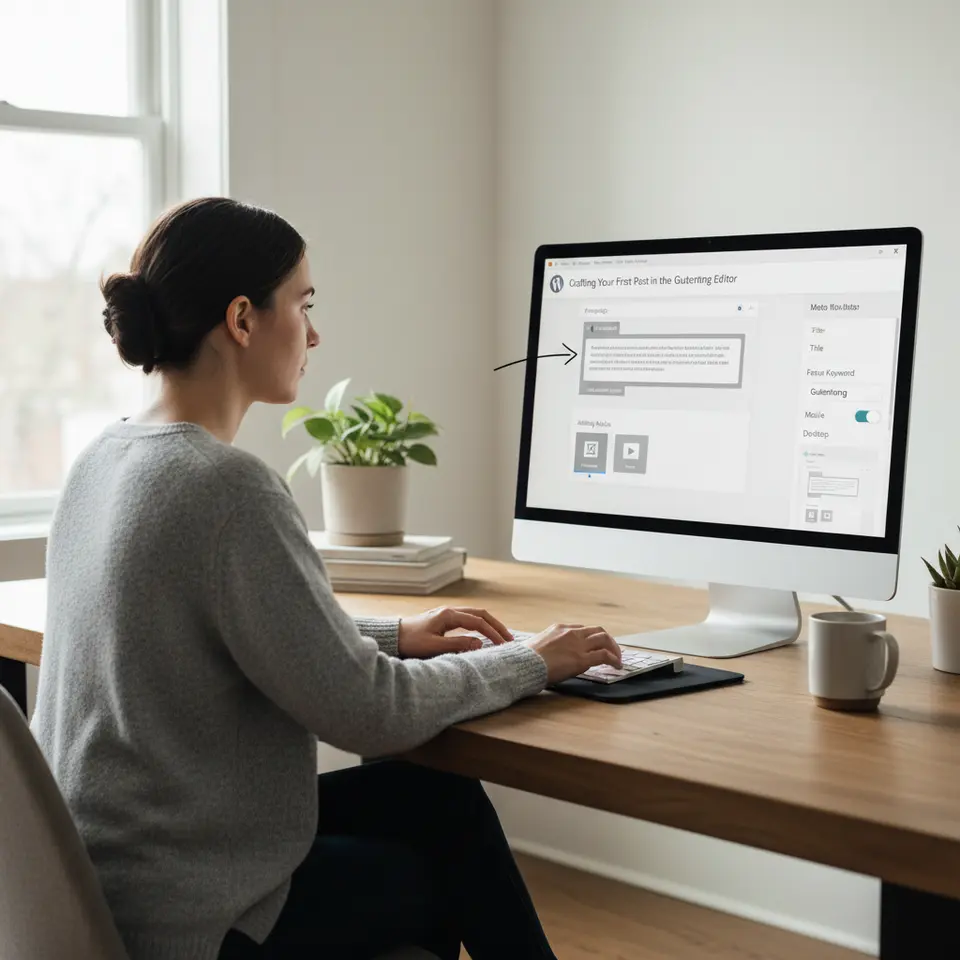
Now that your site is live, it’s time to create engaging content. In this WordPress beginner guide, we’ll focus on navigating the Gutenberg editor. This block-based editor makes it simple to mix text, images, video embeds, and custom design elements. To begin, click Posts > Add New. Give your article a clear, descriptive title that naturally incorporates your focus keyword: WordPress beginner guide.
Within the editor, add a paragraph block and introduce your topic with a compelling hook. Use headings (<h2> and <h3>) to break content into digestible sections. For instance, you might include a <h3>overview</h3> of WordPress’s history or a <h3>step-by-step tutorial</h3>. Incorporate the focus keyword organically throughout your headings and body text. Aim for a keyword density of around 1–2%, but avoid keyword stuffing, which can harm readability and search performance.
Visual content enhances reader engagement. To insert images, use the Image block and upload optimized files. Compress images before uploading to maintain fast load times. For advanced users, consider embedding videos from environments like YouTube or Slides from Google. When you embed, ensure you provide alt text for accessibility. According to Usability.gov (https://www.usability.gov), accessible design improves user experience and expands your audience reach.
Before hitting Publish, preview your post on desktop and mobile viewports to ensure responsiveness. Use the pre-publish checklist: confirm readability, verify internal and external links, check for grammar errors, and add meta descriptions in the Rank Math SEO plugin. Include a call to action at the end, prompting readers to subscribe, comment, or explore related content. Once you’re satisfied, click Publish and celebrate the release of your first WordPress post!
Customizing Themes and Plugins
One of the reasons WordPress remains a top choice in 2026 is its extensive theme and plugin ecosystem. Themes determine the visual layout of your site, while plugins add functionality. In this WordPress beginner guide, we’ll show you how to choose and configure both to align with your goals.
Start by navigating to Appearance > Themes. Browse the official WordPress repository or premium marketplaces to find a theme that matches your style and niche. Evaluate themes for responsiveness, code quality, and update frequency. Most developers include live demos—test these on mobile devices to confirm a seamless experience. Once you find a candidate, click Install > Activate.
After activation, head to Appearance > Customize to adjust site identity, header and footer elements, typography, and color palettes. Many modern themes also offer built-in layout builders. Use these tools to drag and drop components without writing code. If you need more advanced customization, consider using a child theme to prevent your changes from being overwritten during updates.
Plugins extend your site’s capabilities. To add plugins, go to Plugins > Add New. Consider essential plugins like Rank Math SEO for search optimization, a contact form plugin such as WPForms, and a security solution like Wordfence. For e-commerce sites, WooCommerce is a popular choice. Always check plugin ratings, active installations, and regular update histories to ensure compatibility and security.
Once you install plugins, configure their settings. For example, in Rank Math, connect to Google Search Console, set up site-wide schema markup, and generate XML sitemaps. In security plugins, enable two-factor authentication and schedule automatic scans. Achieving a balanced combination of visual appeal and robust functionality will create a professional website that resonates with visitors and search engines alike.
Optimizing for SEO and Performance
Deploying a website is only half the battle; ensuring it ranks well and loads quickly is equally crucial. In this WordPress beginner guide, we’ll cover actionable SEO and performance tactics that align with current best practices.
First, configure your SEO plugin. In Rank Math SEO, set up the focus keyword for each post, add meta titles and descriptions, and enable breadcrumbs for improved site structure. Use the built-in content analysis tool to refine readability, add internal links to related posts, and optimize images with descriptive alt text.
Next, address site speed. A slow website leads to higher bounce rates and lower search rankings. Start by enabling caching using a plugin like WP Rocket or W3 Total Cache. Minify CSS and JavaScript files, and consider implementing a content delivery network (CDN) to serve assets from servers closer to your audience. Regularly audit your site with tools like Google PageSpeed Insights to identify areas for improvement.
Site security also plays into SEO. Secure sites (HTTPS) receive a ranking boost, so install an SSL certificate if you haven’t already done so. Keep WordPress core, themes, and plugins up to date. Scan for vulnerabilities using tools recommended by the National Institute of Standards and Technology (https://www.nist.gov), and follow their guidelines for password policies and system hardening.
Finally, focus on accessibility and user experience. Follow Web Content Accessibility Guidelines (WCAG) to ensure your content is usable by all visitors. Use semantic HTML, provide keyboard navigation, and include ARIA landmarks. Embracing accessibility not only expands your reach but also aligns with governmental web standards, enhancing credibility and legal compliance.
Maintaining, Growing, and Scaling Your Blog
After launching and optimizing your website, maintaining momentum is key. This final section of our WordPress beginner guide addresses ongoing maintenance, analytics, and strategies for scaling your online presence.
Regular backups are essential. Set up automatic backups through your host or use a plugin like UpdraftPlus. Store backups offsite, such as in cloud storage, for extra security. Schedule periodic maintenance windows to update WordPress core, themes, and plugins. Always test on a staging environment before applying changes to your live site.
Tracking performance helps you understand visitor behavior. Connect your site to Google Analytics and explore metrics like page views, bounce rates, and conversion goals. Use Google Search Console to monitor search impressions, click-through rates, and indexing status. Regularly review these insights to identify high-performing content and topics that resonate with your audience.
To expand your reach, consider email marketing and social media integration. Plugins like Mailchimp for WordPress make it easy to capture subscriber emails and automate campaigns. Share new posts on social platforms and engage with communities to drive traffic. Guest posting on reputable blogs or inviting guest authors can also boost credibility and introduce new audiences to your site.
As your site grows, you may need to scale your hosting plan or migrate to a managed WordPress provider. Managed hosts often include performance optimizations, security monitoring, and expert support, allowing you to focus on content creation and marketing. Stay involved in WordPress communities to keep up with trends, attend virtual meetups, and contribute to discussions.
By following this guide, you’re well-equipped to manage and expand a thriving WordPress website. The combination of thorough planning, ongoing maintenance, and strategic growth initiatives will position you for long-term success.
FAQ
How do I choose the right hosting provider for my WordPress site?
When selecting a hosting provider, prioritize uptime guarantees, one-click WordPress installs, automatic backups, and responsive customer support. Your site’s performance and security depend on these core features.
What is the Gutenberg editor, and how do I use it?
The Gutenberg editor is WordPress’s block-based content editor. It allows you to mix text, images, video embeds, and custom design elements within blocks. Simply add and rearrange blocks to build rich, multimedia posts without coding.
How can I improve my site’s SEO and speed?
Install an SEO plugin like Rank Math to set focus keywords, meta titles, and descriptions. Enable caching, minify CSS and JavaScript, and use a CDN to serve assets quickly. Regularly audit your site with tools like Google PageSpeed Insights and follow accessibility guidelines for optimal performance and reach.
Conclusion
Embarking on your website journey can feel daunting, but with this WordPress beginner guide, you have a clear roadmap. We’ve covered everything from initial setup and content creation to customization, optimization, and long-term maintenance. By leveraging reliable hosting, dynamic themes, essential plugins, and SEO best practices, you’ll build a site that stands out in today’s competitive online environment.
Remember to prioritize user experience, security, and accessibility. Regularly monitor performance, engage with your audience, and adapt your strategies based on data insights. With dedication and continuous learning, your WordPress site will evolve into a powerful platform that meets your goals in 2026 and beyond.
Now it’s your turn: follow this guide step by step, experiment with new features, and share your successes. Here’s to your thriving WordPress presence!

1 Comment
Hi, this is a comment.
To get started with moderating, editing, and deleting comments, please visit the Comments screen in the dashboard.
Commenter avatars come from Gravatar.